
Technical SEO for AI search starts with a practical question: can the relevant system fetch the right page and understand the answer you intend to publish?
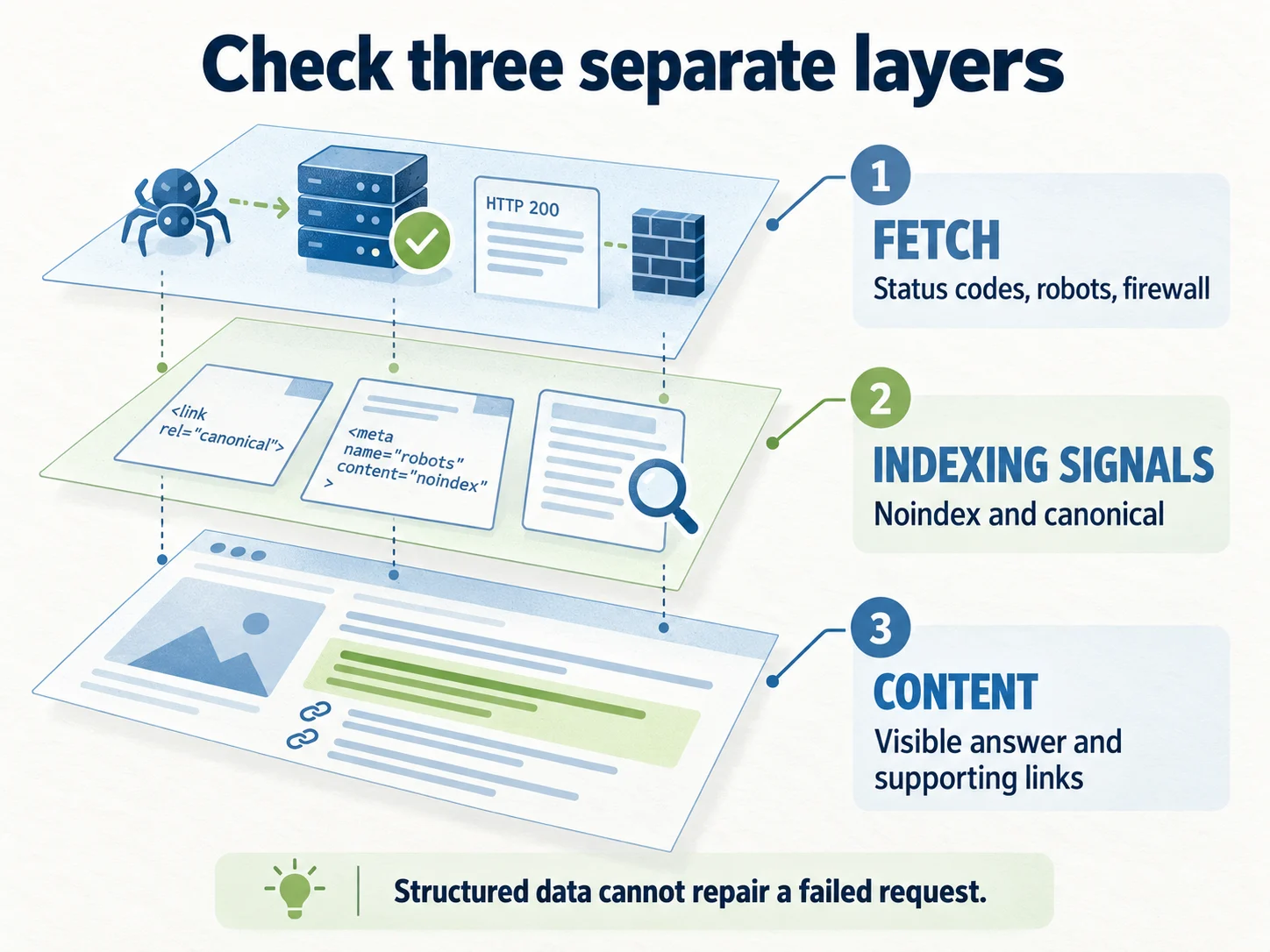
For a WordPress site, that means checking status codes, crawl controls, indexing instructions, canonical URLs, visible content, and internal links. Structured data can describe a page, but it cannot repair a failed request or make a missing answer appear.
This checklist is for site owners and the people maintaining their WordPress installation. Work on one representative page first, keep a record of changes, and use a staging site for changes that could disrupt production.
Technical readiness also decides whether outside help can succeed. If you engage AEOFAST for selected buyer questions, share this readiness checklist with the team responsible for the website. Agree on who fixes access problems and who supplies approved factual content. A managed visibility engagement should not obscure an unresolved publishing problem.
Check a complete request, not just the homepage
A homepage returning 200 does not prove that your article, product page, or login flow works. Different paths may use different caches, plugins, database queries, and upstream services.
Choose a small test set:
- The homepage.
- A priority article.
- A product or service page.
- A category or archive that links to the article.
- The login page, checked separately from public indexing.
Record the URL, final status, redirect destination, time, and whether the expected content is present. A successful status with a maintenance message is still a failed reader experience.
This shell command performs a normal GET request and saves both headers and the returned HTML. Replace the example URL with a page you manage:
curl -sS -L --max-time 30 \
  -D response-headers.txt \
  -o response-body.html \
  -w 'status=%{http_code} final=%{url_effective} seconds=%{time_total}\n' \
  'https://example.com/your-page/'
Do not put authentication tokens or private customer URLs into a public diagnostic report. The command shows one request, not a guarantee of availability. Repeat a small, bounded sample at the times affected users report problems.
A real WordPress outage, and what it taught us
On a WordPress site we maintain, a routine core update took every public page offline. WordPress 7.1 added a core function named is_sitemap(). An older sitemap plugin, XML Sitemap & Google News version 5.2.3, declared its own function with the same name. PHP stopped with a “Cannot redeclare is_sitemap()” fatal error, and the homepage, every article, and the XML sitemap all returned HTTP 500.
The fastest safe recovery was to deactivate only the conflicting plugin, which restored the pages, and then repair the plugin’s function name before reactivating it. No core files were edited. The lessons generalize to any WordPress site:
- Test more than the homepage after updates. Check a deep article and
/sitemap.xmlas well, and confirm the sitemap still parses as XML. - Keep an inventory of old plugins. A plugin that has not been updated for years is the most likely to collide with new core functions.
- Patch with a record. A local fix to a plugin is overwritten by the next plugin update, so record what was changed and look for a maintained replacement.
The same investigation found a slower problem. PHP-FPM repeatedly reported reaching its worker limit, and slow-request traces pointed at a sidebar widget that ran 28 database queries every time it rendered. Batching those lookups cut it to 6 queries and its render time from about 818 ms to 276 ms, with byte-identical HTML output. That one change relieved more pressure than a bigger server would have, and it was measurable. Before you resize hardware, find out which requests are actually holding the workers.
Treat intermittent 502s as an availability investigation
A 502 indicates that a gateway received an invalid response from an upstream server. The precise cause depends on the stack. It is not, by itself, proof that the server needs more memory or that a particular plugin is responsible.
On a WordPress stack, useful evidence includes the gateway error log, web-server log, PHP-FPM log, PHP error log, database timing, and resource metrics for the same time window. A worker queue, a process crash, a slow external request, and an origin connection failure call for different fixes.
Ask the maintainer to correlate a failing request with those records. After a change, retest the affected path and compare the relevant timing or error evidence. “We restarted PHP” describes an action; “the failing request now completes and its error no longer occurs in the checked window” describes a verified result.
Keep this work ahead of content expansion when important pages are intermittently unavailable.
Separate crawl access from indexing instructions
Robots controls answer different questions. Confusing them can leave you with a page that is accessible to users but unavailable to a crawler, or a page you intended to exclude that remains known to a search engine.
| Control | What to inspect | Common mistake |
|---|---|---|
| robots.txt | Rules for the relevant crawler and path | Blocking an entire directory that contains public answers |
| Meta robots | Instructions in the HTML head | Leaving a staging noindex setting on production |
| X-Robots-Tag | Instructions in HTTP response headers | A server rule excluding otherwise valid pages |
| Authentication or challenge | What an unauthenticated request receives | Returning a login screen or bot challenge instead of the article |
| Firewall/CDN rules | Logged decisions for legitimate requests | Assuming a robots.txt allow rule overrides a firewall block |
Google’s robots.txt introduction distinguishes crawl management from removing pages from search. Its robots meta documentation explains page-level indexing controls.
In WordPress, inspect Settings → Reading and any SEO, maintenance, security, or caching plugin that modifies these controls. Do not change global settings until you know which component produced the current instruction.
Three WordPress behaviors explain many confusing audit results:
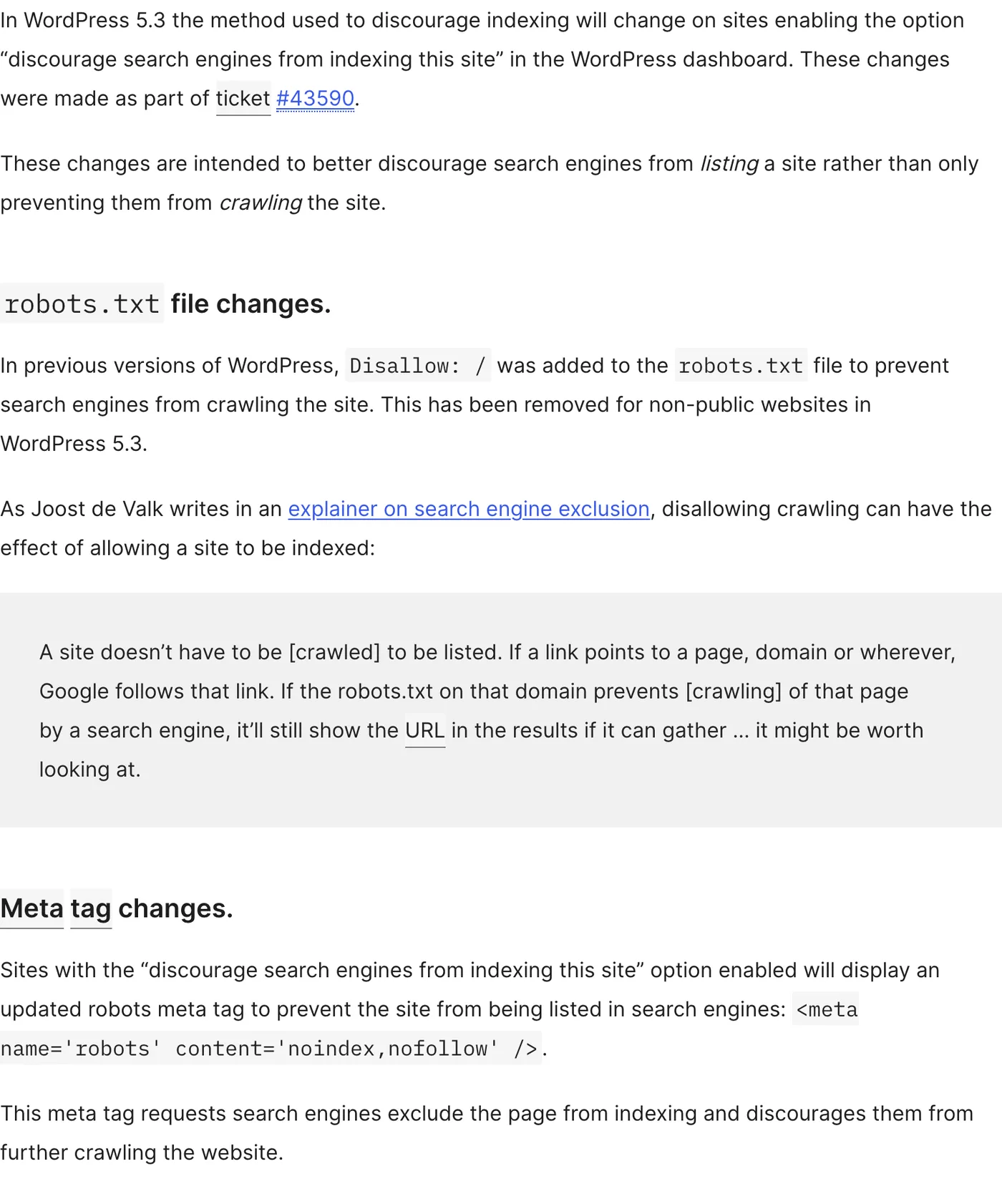
- “Discourage search engines” does not touch robots.txt. Since WordPress 5.3, the checkbox adds a
noindex, nofollowrobots meta tag instead of aDisallow: /rule. A robots.txt check will look clean while every page tells search engines not to index it. Always inspect the page source as well. - WordPress robots meta output is filter-based. The Robots API added in WordPress 5.7 builds the tag through the
wp_robotsfilter and, on public sites, addsmax-image-preview:largeby default. SEO plugins and themes can add or remove directives through the same filter, so the final tag is the only reliable evidence. - A physical robots.txt file overrides the virtual one. WordPress generates robots.txt dynamically only when no file exists on disk. An old file left by a previous host or plugin is served instead, and any rules you set in a plugin’s interface silently do nothing.
Decide AI crawler access deliberately
Search access and model-training access are separate policy choices. OpenAI’s publisher FAQ distinguishes OAI-SearchBot for search from GPTBot for training.
If you want public pages eligible for ChatGPT search discovery, inspect the relevant search-crawler rules and network access. Make a separate decision about training access. Do not assume one setting expresses both choices.
A request made with a crawler’s user-agent string is a useful configuration test, but it is not proof that the real crawler can reach you. IP-based firewall rules and other controls may behave differently. Use verified crawler documentation and server records when investigating a genuine access failure. Our AI visibility audit checklist explains how to verify crawlers by IP address and why origin logs behind a CDN often cannot show them.
If the site sits behind Cloudflare, review its AI bot settings as part of this decision. Since 15 September 2026, Cloudflare’s “Block” settings for training also apply to mixed-use crawlers such as Googlebot and Bingbot, so a well-meant training block can affect ordinary search visibility.
Confirm that the canonical represents the intended page
For each priority article, check:
- The final URL after redirects.
- The canonical URL in the returned HTML.
- Whether internal links point to that preferred version.
- Whether the sitemap uses the same version.
- Whether near-duplicate pages compete for the same answer.
A copied template can accidentally point multiple articles at a homepage or old URL. A migration can leave internal links on a redirecting version. Both are worth correcting at their source.
Canonical annotations are signals, not a command that guarantees a search engine’s choice. Google’s canonicalization guide explains the available methods and the importance of consistent signals.
Do not canonicalize distinct articles together simply because they mention the same topic. Two pages can share vocabulary while answering different decisions.
Inspect the answer a visitor actually receives
Check the initial HTML and the rendered browser page. The core answer should not disappear behind a broken script, a consent interaction, or a widget that never loads.
For a WordPress article, verify that the title and body are present, the heading hierarchy is sensible, tables are readable on a phone, and meaningful image text has an accessible alternative. If the article embeds a calculator, give the reader enough explanatory text to understand its inputs and limits.
Also check that the mobile page contains the same material answer. A table cropped beyond the viewport can technically exist while being unusable.
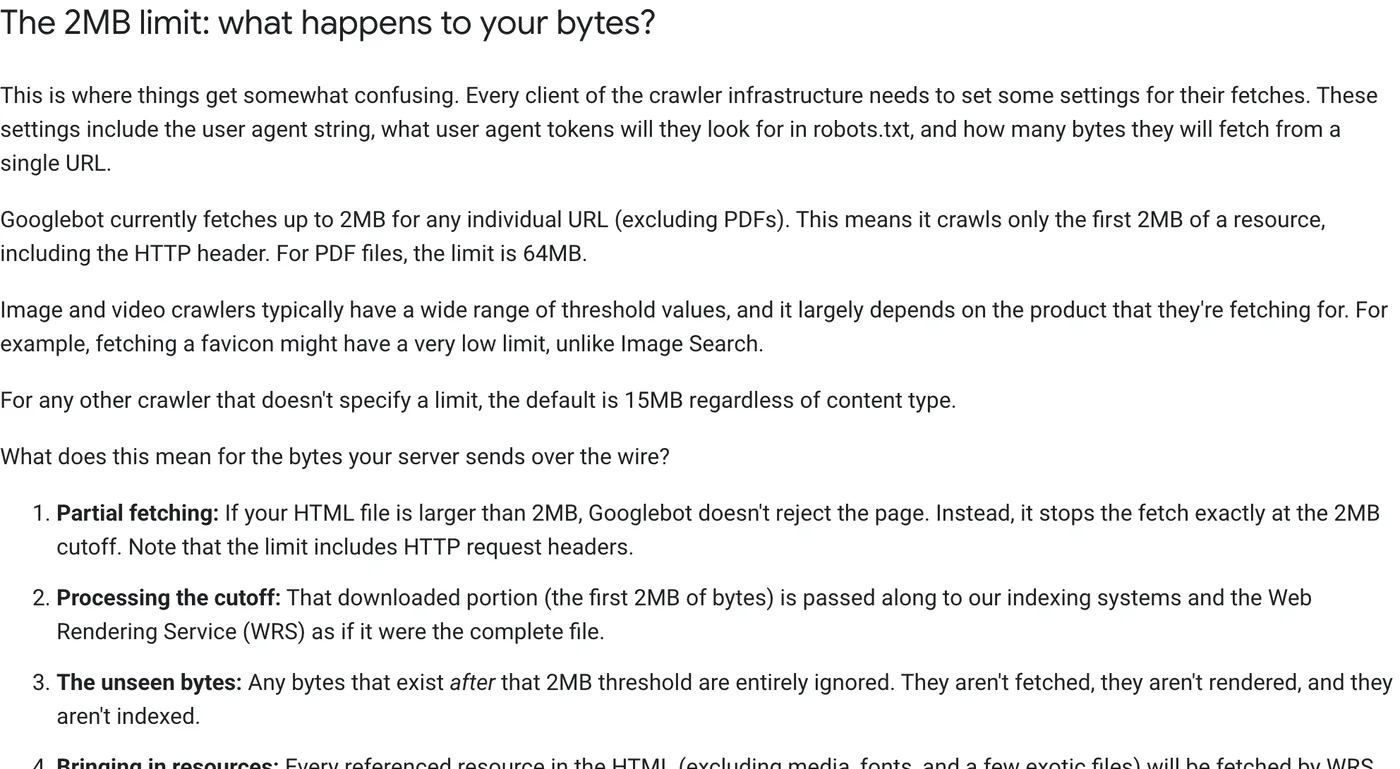
Check the page weight as well. Google’s Googlebot byte-limit explanation states that Googlebot fetches only the first 2 MB of an HTML file, including HTTP headers, measured on uncompressed data. Anything after the cutoff is not fetched, rendered, or indexed. Most pages are far smaller, but page builders that inline large CSS blocks, base64 images, or long menus ahead of the article can push the actual answer toward that limit. A quick check:
curl -sS 'https://example.com/your-page/' | wc -c
Without the --compressed option, curl does not request compression, so the byte count approximates the uncompressed HTML. Google also recommends keeping titles, meta tags, canonical links, and structured data high in the document, and moving heavy CSS and JavaScript to external files, which have their own separate limits.
Google’s AI features guidance says established SEO practices remain relevant and does not require special AI markup. Focus your technical work on a reliable, useful page before adding speculative files or complicated formatting rules.
Use structured data to describe real content
For an editorial article, appropriate Article or BlogPosting data may describe the headline, author, publication date, modification date, and image. The values should agree with the visible page.
Do not mark an ordinary service page as a review, invent a rating, or attach FAQ markup to questions users cannot see. Check the current supported search features before promising a particular enhanced result.
Google’s structured data policies require representative, accurate markup. Its Article documentation describes the relevant properties. Valid syntax alone does not guarantee a rich result or an AI citation.
WordPress has generated its own XML sitemap at /wp-sitemap.xml since version 5.5, and most SEO plugins replace it with their own. Make sure robots.txt, Search Console, and Bing Webmaster Tools all point to the sitemap that is actually active, and that it lists the canonical URLs.
Use one responsible component for each metadata type. Multiple SEO plugins can produce duplicate titles, descriptions, canonicals, or conflicting schema. Inspect the output instead of assuming that installing another plugin improved it.
Close the loop with a small release checklist
Before signing off, record one pass or failure for each item:
- Priority URLs return the expected content successfully.
- Crawl and indexing controls express the intended policy.
- Canonicals, internal links, and sitemap entries agree.
- Titles and descriptions accurately distinguish the pages.
- Article content is readable on desktop and mobile.
- Structured data matches visible facts.
- Error and performance observations improve after any relevant fix.
- The homepage, a deep article, and the active sitemap all load after every core or plugin update.
- Page HTML stays well under Googlebot’s 2 MB fetch limit.
Then connect technical readiness to the content work. A technically accessible page may still provide a weak answer; use the AEO content brief to address that separately.
If an outside team is helping with visibility, such as the managed service mentioned at the start of this checklist, send them the completed checklist so content work starts from a verified technical baseline.
Keep the before-and-after evidence with your AI visibility audit. Technical work is most useful when the next person can see what failed, what changed, and what was actually verified.
Questions teams commonly ask
Do we need an llms.txt file on WordPress?
Not for Google Search, which states that it ignores llms.txt and similar files. Other services may read it, and adding one does no harm, but it should come after the checks above.
Should we install a plugin that adds “AI schema”?
Google says no special schema.org markup is needed for its generative AI features. Accurate Article, Organization, Product, or LocalBusiness markup that matches the visible page is useful; markup invented for AI systems is not.
How do we know whether a plugin update broke something important?
Keep a short smoke test: the homepage, one deep article, the sitemap, and one key conversion page, each checked for status and expected content. Run it after every update and after any change to caching, security, or CDN settings.
Leave a Reply